How to Find Stories
Search for stories shared by other Outlets in your Group, filter the results, preview a story, and bookmark anything worth a second look.
Before You Begin
You will need:
- A Wire account with a verified Outlet (see Join an Outlet)
- Membership in at least one Group (see Join a Group)
Instructions
Navigate to Search
-
Log in to your Wire account.
-
Go to the Search page at https://wire.pluckyworks.org/search/.
You can also click the search icon (a magnifying glass) in the navigation bar at the top of any page.
Search by Headline
-
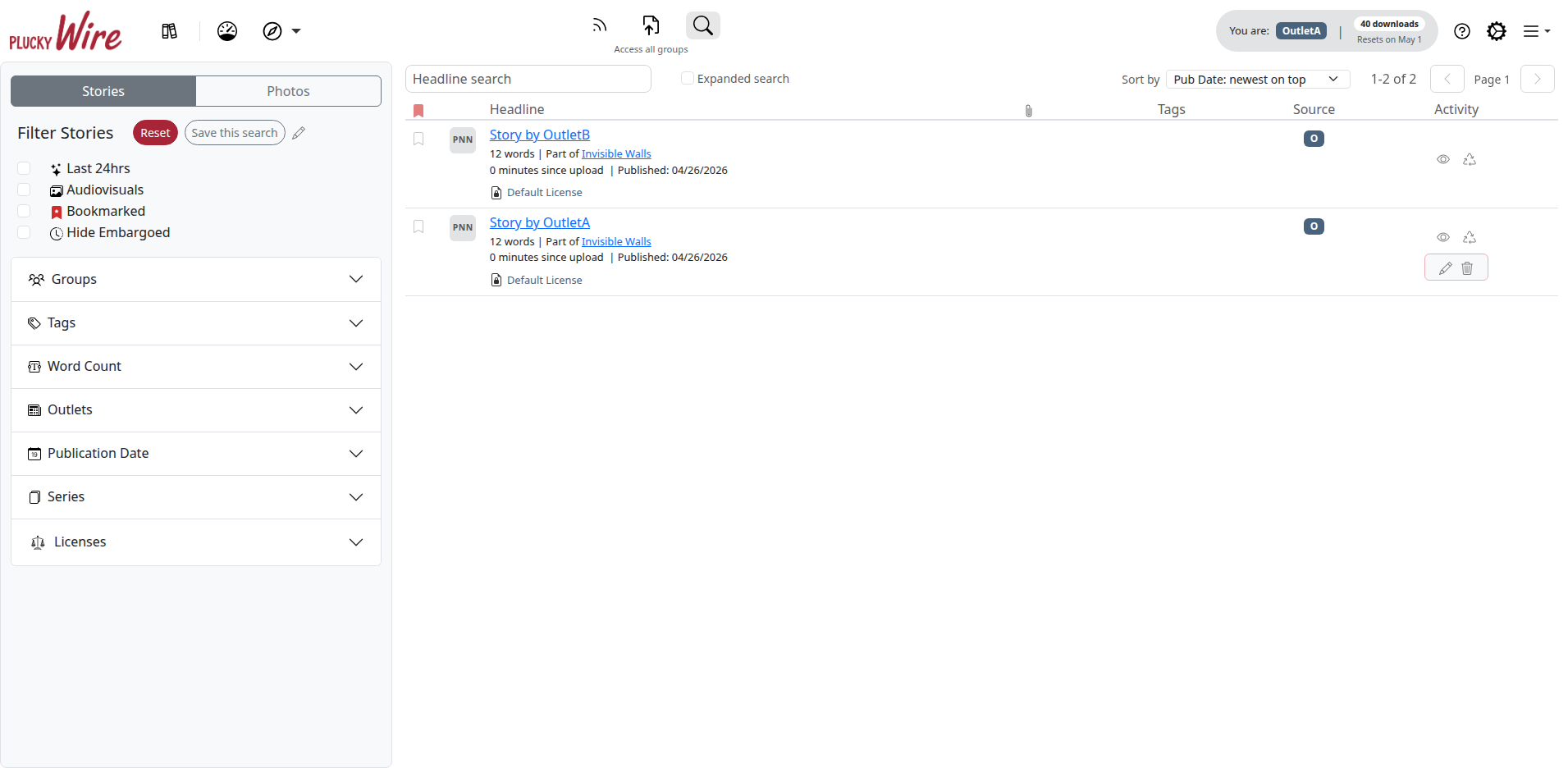
In the search bar at the top of the results area, type one or more words from the headline you're looking for.
Results update automatically a moment after you stop typing. There is no separate Search button.
-
To search inside stories as well, check the Expanded search box next to the search bar. Expanded search covers subheadlines, body text, editor's notes, and photo captions in addition to headlines.
Wire matches whole words, not fragments. A story matches when it contains every word you type, in any order. Close variants of each word count too: searching budget also finds "budgets" and "budgeting". Part of a word finds nothing, so budg does not match "budget".
Search for Phrases, Either/Or Matches, and Exclusions
The search bar understands the same shorthand as a web search engine. Use quotation marks, OR, and a minus sign to say exactly what you mean:
| Type this | To find stories that |
|---|---|
city council |
Mention both city and council, anywhere and in any order. |
"city council" |
Contain the exact phrase city council. |
flood OR wildfire |
Mention either word (or both). |
"city council" OR "county commission" |
Contain either phrase. |
housing -shortage |
Mention housing but not shortage. |
election -"school board" |
Mention election but not the phrase school board. |
A few details worth knowing:
- Capitalization never changes the results:
City Councilandcity councilfind the same stories. This also means the word "or" between two search words always means either/or, even in lowercase. - Very common words such as "the", "of", and "a" are ignored, so
state of the countysearches for state and county. - The same rules work everywhere Wire searches text: the headline search, Expanded search, the caption search box in Photos mode, and the matching that powers Custom Alerts.
Filter Your Results
Use the filter panel on the left side of the page to narrow your results. You can combine any number of filters; results match every filter you set.
| Filter | What it shows |
|---|---|
| Last 24hrs | Stories added or updated in the past day. |
| Audiovisuals | Stories that include images, audio, video, or PDF attachments. |
| Bookmarked | Stories someone at your Outlet has flagged for consideration. Visible only when you have an Outlet selected. |
| Hide Embargoed | Excludes stories that aren't available for reprint yet. |
| Groups | Stories shared in specific Groups you belong to. |
| Tags | Stories tagged with the geographical, editorial, or topical tags you select. |
| Word Count | Stories within a minimum and/or maximum word count, set with the Minimum and Maximum fields. |
| Outlets | Stories from specific Outlets in your Groups. |
| Publication Date | Stories published within a date range. |
| Series | Stories from a particular series. |
| Licenses | Stories under a specific content License. |
Tip
Click Reset to clear all filters and start fresh.
Save a Search
If you run the same search often (your beat, a particular Group, a recurring set of tags), save it and re-run it in one click.
-
Set up the search words and filters you want to keep.
-
Click Save this search in the Filter panel.
A modal (a pop-up window) opens.
-
Check the Name. Wire suggests your search words; change it to anything up to 30 characters.
-
Click Save search.
The modal changes to Search saved.
-
Click Done.

To re-run a saved search later, pick it from the Saved searches... dropdown at the top of the Filter panel. To rename or delete one, click Manage next to that dropdown. The dropdown and the Manage button appear once you have saved at least one search.
Tip
Wire can email you new content that matches a saved search. These emails are called Custom Alerts. See How to Set Up Custom Alerts.
Understand the Results Table
The results table shows the key information about each story at a glance.
| Column | What it shows |
|---|---|
| Bookmark | A flag for stories your Outlet is considering. See Bookmark a Story below. Visible only when you have an Outlet selected. |
| Group | The logo (or initials) of the Group the story was shared in. Hover for the Group's full name. |
| Headline | The story title, word count, series name (if any), last update, and publication date. |
| Attachments | Icons for the kinds of media included (photos, videos, audio, PDFs, embeds). |
| Tags | Color-coded badges (small colored labels) for tags assigned to the story. |
| Source | Logos or initials of the Outlet(s) that published the story. |
| Activity | How many Outlets have viewed or downloaded the story. |
Info
Stories with corrections, retractions, or other edit warnings display a badge next to the headline.
Bookmark a Story
Bookmarks help editors at your Outlet coordinate which stories you're considering for republication. When one User bookmarks a story, everyone at the Outlet sees the bookmark, no need to send links back and forth.
-
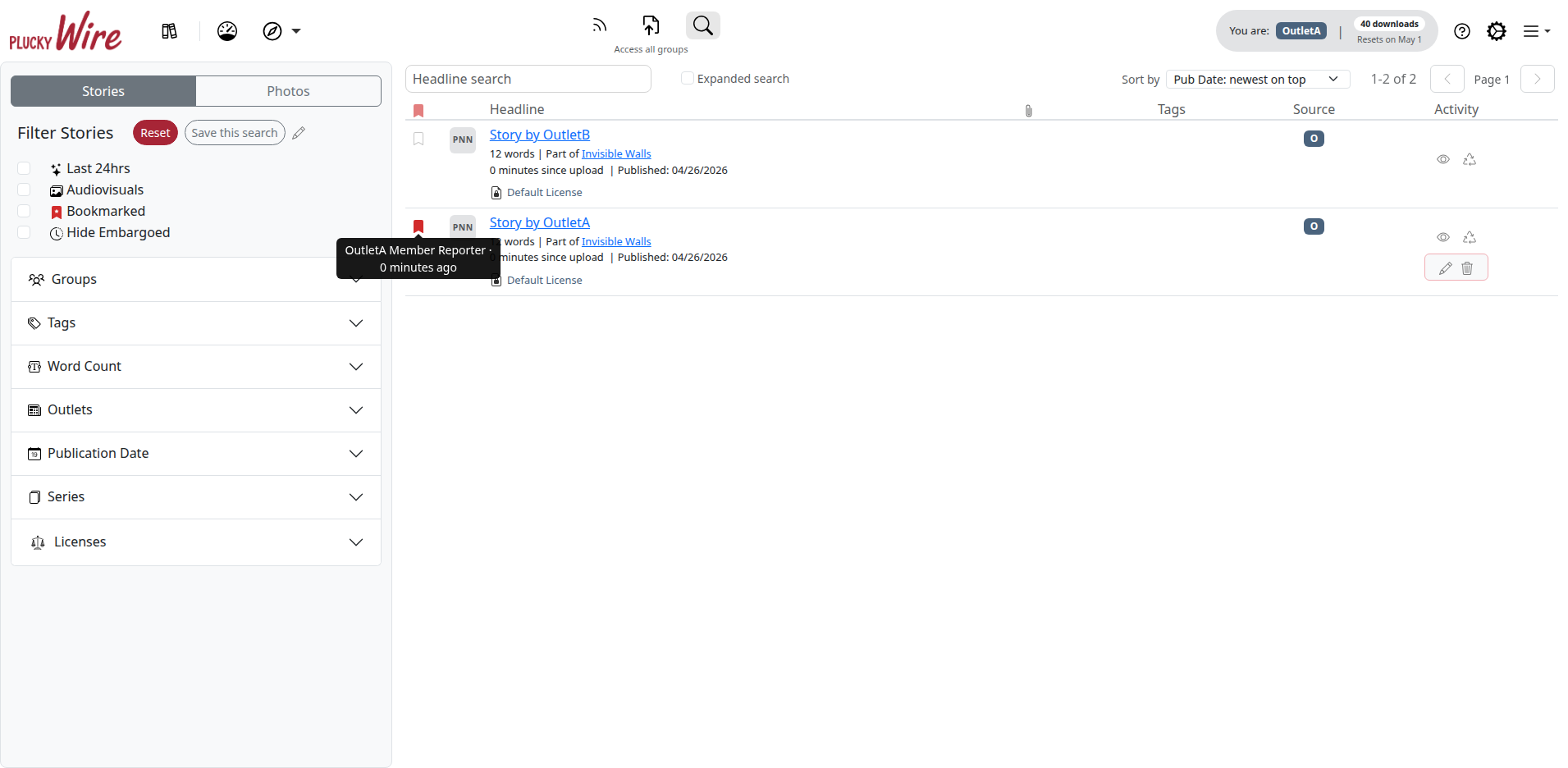
In the search results, click the bookmark icon next to a story you want to flag for your team.
The icon fills in to show the story is bookmarked.
-
Hover over a bookmarked story's icon to see who bookmarked it and when.
-
To see only bookmarked stories, check the Bookmarked filter in the filter panel.
-
To remove a bookmark, click the bookmark icon again.
Preview a Story
-
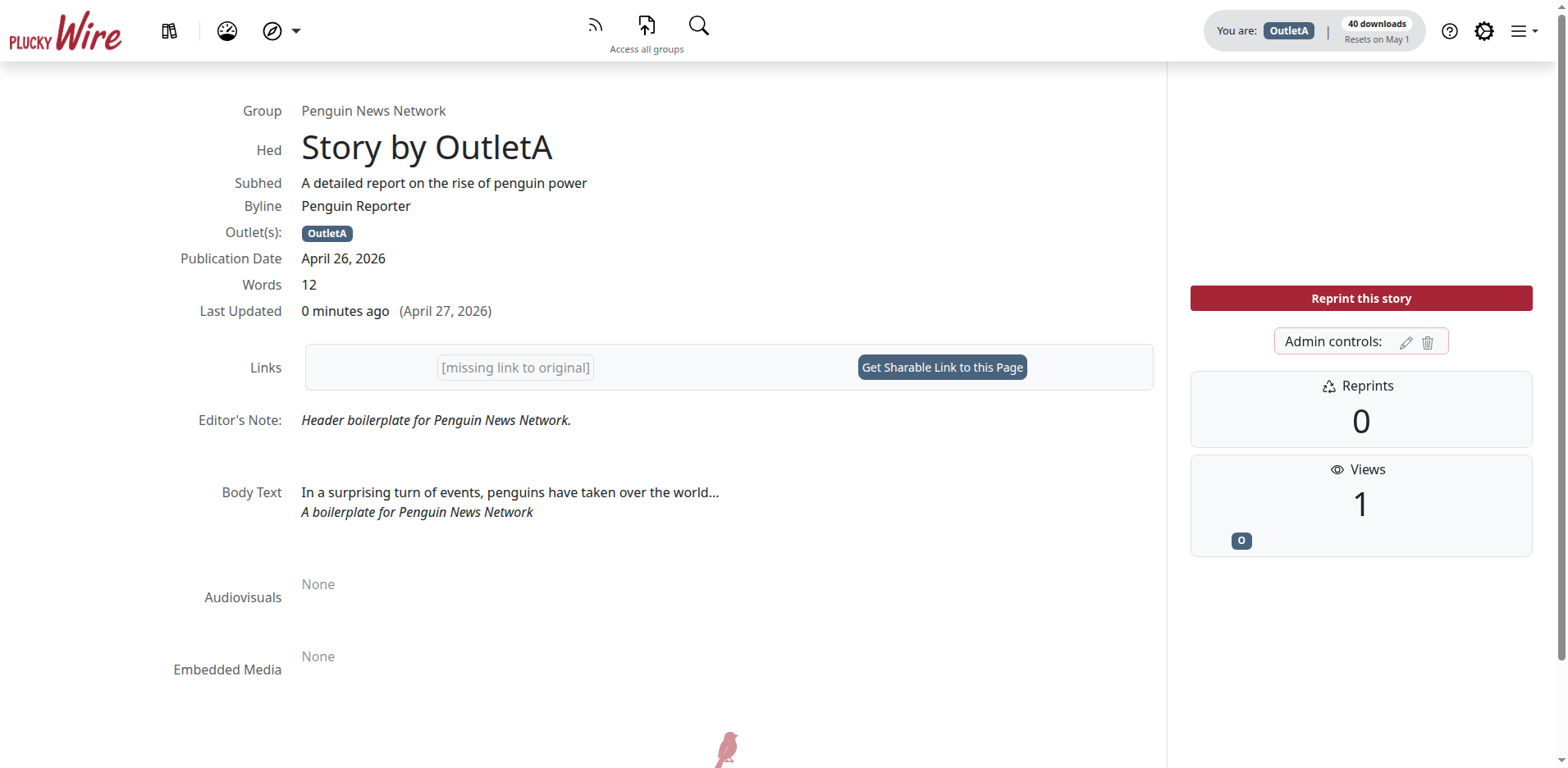
Click a story's headline to open the full story page.
-
Review the story content: full headline, sub-headline, body text, attached audiovisuals (click to enlarge), embedded media (YouTube videos, data visualizations, DocumentCloud PDFs), publication date, word count, and any editor's notes or edit history.
-
Use your browser's back button to return to your search results. Your filters and search text are preserved.
Next Steps
When you've found a story you want to use:
- Download a story: copy the text and save attachments for republishing.
Troubleshooting
- No stories found: Broaden your search. Every search word must appear in a story for it to match, so try fewer words, or connect alternatives with
OR. Then remove filters, clear the search text, or check whether you've set conflicting filters (a narrow date range plus a strict word-count range can return nothing). - A partial word finds nothing: Search matches whole words only. Type the full word (
budget, notbudg); close variants like "budgets" are included automatically. - A quoted phrase finds nothing: Quotation marks require the words to appear together, word for word. Remove the quotes to find stories that contain the words anywhere, in any order.
- I can't see stories from a specific Outlet: That Outlet must be a member of the Group you're currently viewing. You can only see stories shared within your own Group.
- A story shows as embargoed: Embargoed stories can't be viewed or downloaded until the embargo date passes. Check back after that date.
- I can't see my colleagues' bookmarks: Bookmarks are scoped to a single Outlet. Make sure you have the correct Outlet selected in the upper navbar.
- Bookmarks don't appear when I'm a Group admin: Bookmarks are an Outlet-level feature. If you're both a Group admin and a User at an Outlet, switch to your Outlet from the navbar to see and manage bookmarks.
- Still stuck? Ask your Group administrator, or email support@pluckyworks.org.